Why Your PDF to Word Conversion Lost Formatting (and How to Fix It)
Converted a PDF to Word and the layout is broken? Learn why formatting gets lost and what you can do to preserve it when converting online.
You converted a PDF to Word and the result looks nothing like the original — tables are scrambled, text is in the wrong place, fonts changed, and images disappeared. This is the most common complaint with PDF to Word conversion, and there is a specific reason it happens. The good news is that some of it is preventable.
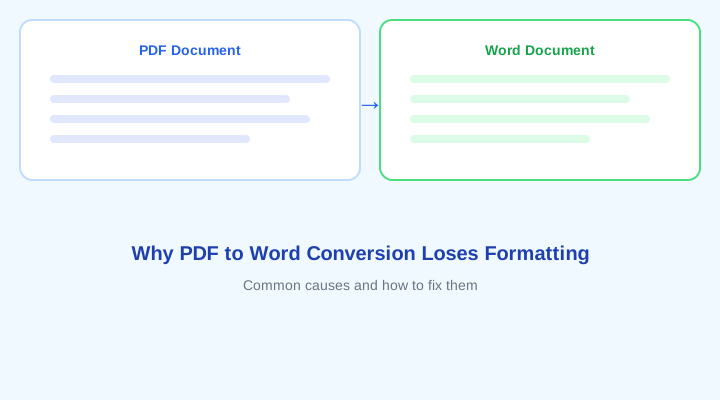
How PDF and Word store layout differently
Why PDF and Word Are Fundamentally Different
A PDF file stores visual layout — each letter, image, and line is positioned at an exact coordinate on the page. It is essentially a digital printout. A Word document, on the other hand, stores content as a flow — paragraphs, styles, and rules that the word processor interprets to produce the layout. When you convert from PDF to Word, the converter has to reverse-engineer the visual layout back into a flowing document structure. This is inherently imperfect because the PDF has already discarded the original document flow.
Common Formatting Problems
- Multiple columns become a single column — the converter cannot detect that side-by-side text was meant to be columns.
- Tables break into individual text boxes — complex table structures do not always map cleanly to Word tables.
- Fonts change — if the PDF used a font that is not installed on the conversion server, a similar font is substituted.
- Images shift position — floating images in PDFs are repositioned in the Word output.
- Headers and footers merge into body text — the converter may not recognize them as page elements.
- Page breaks land in different places — the Word document may flow differently because it uses different margins and fonts.
How to Get Better Results
- Use a PDF that was originally created from a Word document — not a scanned paper document. Text-based PDFs convert far better than image-based ones.
- Avoid PDFs with complex multi-column layouts — single-column documents convert most reliably.
- Check that your PDF contains selectable text — if you can highlight the text with your mouse, it will convert. If it is just a picture of text, it will not (unless OCR is applied).
- Use a converter that does server-side processing with LibreOffice or a similar engine — PureFileConverter uses LibreOffice for high-fidelity conversion.
- After conversion, adjust fonts and spacing manually in Word — minor adjustments are normal and expected.
Tip: If your PDF has selectable text and was generated from a Word document or text editor (not printed to PDF from a design tool), the conversion will be close to perfect. Scanned PDFs and complex layouts will always have some loss.
When Conversion Will Not Work
If your PDF is a scanned image of paper — a photo of a document, not a text-based PDF — the conversion will produce images, not editable text. This is because the scanner captured a picture, not text. To get editable text from a scanned PDF, you need OCR (optical character recognition) software, which PureFileConverter does not currently run. For scanned documents, try Google Drive's built-in OCR or Adobe Acrobat's scan-to-text feature.
Adobe Acrobat Pro — Best for Scanned PDFs
Includes OCR for scanned documents and advanced PDF editing. Amazon affiliate link.
The Honest Bottom Line
No PDF to Word converter is perfect. The format difference between PDF and Word means some layout information is permanently lost in the PDF creation process. The best you can get is a clean text-based conversion where the content is editable, even if the positioning shifts slightly. PureFileConverter does this well — it preserves paragraphs, headings, tables, and images, even if exact pixel positions move.
Try PDF to Word Converter Free
No signup. No watermark. Files auto-deleted after 1 hour.
Use the Tool